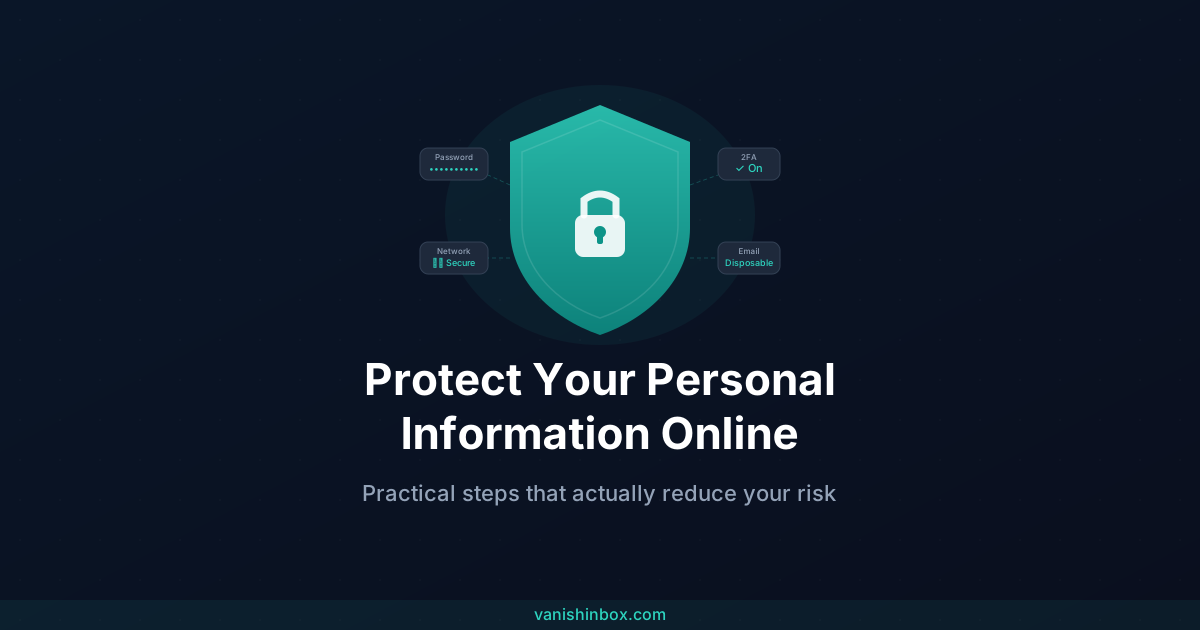
More than a million people reported identity theft to the FTC in 2024. Identity thieves can drain bank accounts, destroy credit scores, and block access to tax refunds and health benefits. The threats are real — and they're getting more sophisticated every year.
The good news is that most successful attacks exploit basic gaps in digital hygiene rather than advanced technical exploits. Fix the basics and you remove yourself from the easy-target category. This guide covers the steps that actually matter, in plain language.
What "Personal Information" Actually Means
Before you can protect your data, it helps to know what's actually valuable to attackers. Personally Identifiable Information (PII) includes:
- Identity documents — National Insurance number (UK), Social Security number (US), passport, driving licence
- Financial data — bank account details, card numbers, sort codes
- Login credentials — email addresses, usernames, passwords
- Contact details — phone number, home address, email
- Medical records — conditions, prescriptions, insurance information
- Date of birth — often used as a verification factor across multiple services
Criminals use this information in two main ways: direct fraud (draining accounts, taking out loans in your name) and credential stuffing (using leaked username/password combinations to break into other accounts). Even partial information can be pieced together from multiple sources to build a complete identity profile.
Passwords: The One Change That Makes the Biggest Difference
Weak or reused passwords are the most common entry point for account takeovers. This is also the easiest gap to close.
The rules that actually matter:
A strong password is long (15+ characters), random, and unique to that account. Length matters more than complexity — PurplePantsMoonElephant is stronger than P@$$w0rd! and far easier to remember.
The critical word is unique. If you use the same password across multiple sites and one of those sites gets breached, every account with that password is now exposed. This is called credential stuffing, and it's automated — attackers don't manually try each account, software does it for them within minutes of a breach becoming public.
Use a password manager. The only realistic way to have a unique password for every account is to let software handle it. Password managers like Bitwarden (free), 1Password, or the built-in managers in Chrome, Safari, and Firefox generate strong passwords and store them securely. You remember one master password; the manager handles the rest.
Don't trust security questions. "What was your first pet's name?" is not security — it's social media trivia. If you must set security question answers, treat them like passwords: use random, made-up answers that bear no relation to the actual question and store them in your password manager. PurpleMoonGiraffe is a better answer to "What is your mother's maiden name?" than your mother's actual maiden name.
Two-Factor Authentication: Your Second Line of Defence
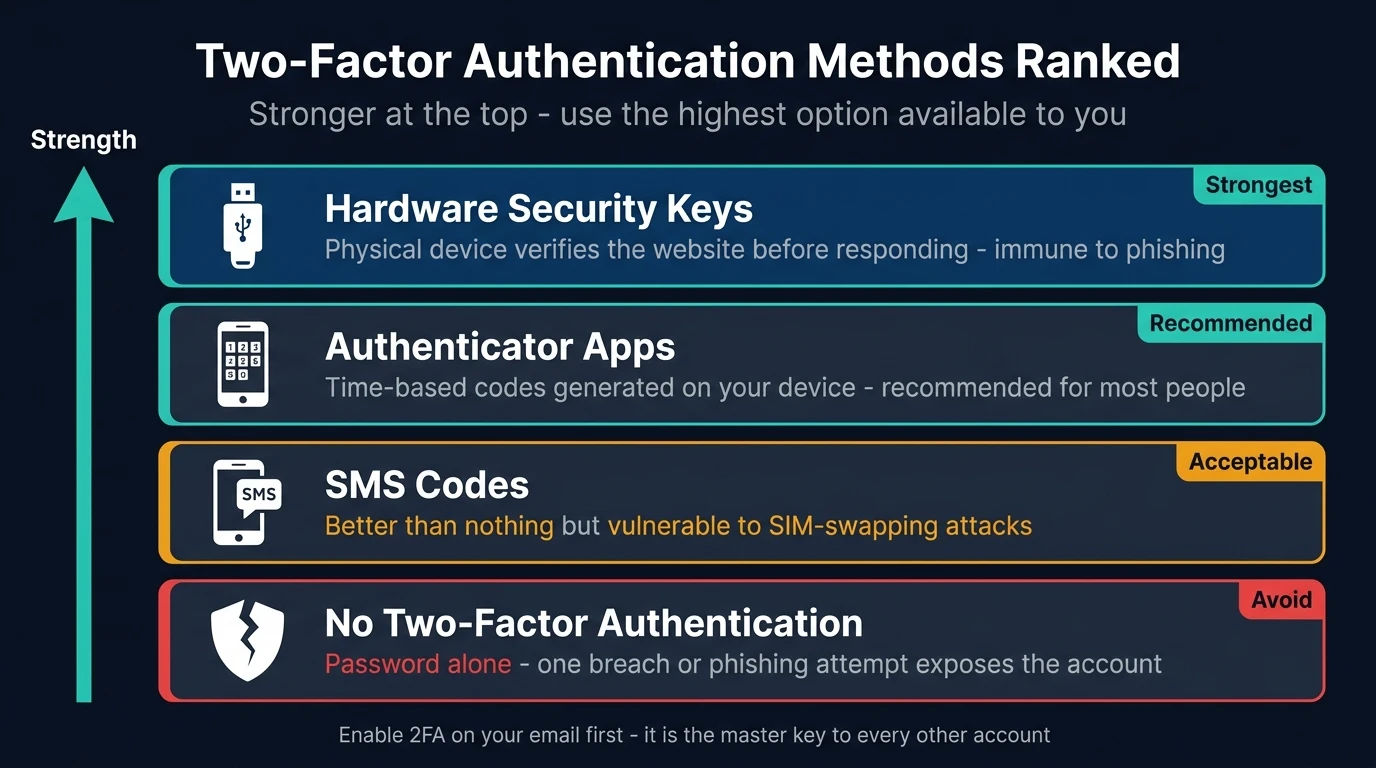
Even a strong password can be compromised — through a data breach, phishing, or malware on a device you've used. Two-factor authentication (2FA) means a stolen password alone isn't enough to get into your account.
2FA requires something you know (your password) plus something you have or are. The options, ranked from strongest to weakest:
Hardware security keys — a physical device (like a YubiKey) that you plug in or tap. Immune to phishing because the key verifies the website's authenticity before responding. The most secure option for high-value accounts.
Authenticator apps — Google Authenticator, Authy, or 1Password generate time-based codes on your device. More secure than SMS because they don't rely on your phone number being secure. This is what we'd recommend for most people as the everyday default.
SMS codes — a code sent to your phone number. Better than nothing, but vulnerable to SIM-swapping attacks where someone convinces your carrier to transfer your number to their SIM. Avoid for your most important accounts if you can.
Biometrics — fingerprint or face recognition, typically on your phone. Convenient and reasonably secure for device access.
Turn on 2FA for every account that offers it. Start with email (the most important — everything else can be reset through it), then banking, then social media and any other accounts that hold financial or identity data.
Keeping Devices Secure
Your devices are the physical entry points to all your accounts. Software security only works if the device running it is maintained.
Install updates promptly. Software updates frequently contain security patches — fixes for vulnerabilities that attackers are already exploiting. The gap between a vulnerability being discovered and attacks targeting it is often measured in hours, not weeks. Enable automatic updates for your operating system, browser, and apps. When a security update is available, install it the same day.
Public Wi-Fi is a risk. Open Wi-Fi networks — in cafés, airports, hotels — can be monitored by anyone on the same network. Avoid accessing banking or sensitive accounts on public Wi-Fi. If you need to, use a VPN, which encrypts your connection and makes your traffic unreadable to anyone on the same network. For a full comparison of what a VPN does versus what a disposable email does, see temp email vs VPN — what's the difference and which do you need.
Secure your home router. Change the default admin password on your router to something strong. Use WPA3 encryption if your router supports it (WPA2 at minimum). Give your Wi-Fi a network name that doesn't identify you or your address.
Wipe devices before disposal. Deleting files before selling or recycling a device isn't enough — the data can be recovered. For phones and tablets, encrypt the device and then factory reset. For laptops and computers, use data-wiping software that overwrites the drive multiple times, or physically destroy the drive for sensitive data. Always remove SIM cards and SD cards before passing on a device.
Recognising and Avoiding Phishing
Phishing is how most credentials get stolen — not through technical exploits, but through deception. For a full breakdown of phishing signs and what to do, see our dedicated guide on how to spot a phishing email. The short version:
- If an email creates urgency or fear, slow down — that's the intended effect, and it works
- Check the sender's actual email address, not just the display name
- Hover over links before clicking to see the real destination
- Never provide a password, full card number, or identity document via email, regardless of how official the request looks
- When in doubt, go directly to the company's website by typing the URL yourself
The same principles apply to SMS (smishing) and phone calls (vishing). A genuine bank or government department will never demand immediate action over the phone and refuse to let you call back through an official number. One increasingly common variant to know about: emails that appear to come from your own address, claiming a hacker is inside your account. These are spoofing scams, not real breaches — see the note to self email scam explained for exactly what to do.
Privacy Settings: Don't Accept the Defaults
Every app, platform, and device you use has privacy settings. The defaults are almost never the most private option — they're usually set to share as much as possible because that serves the platform's business interests, not yours.
Regularly review:
Social media — who can see your posts, your friends list, your location check-ins, your tagged photos. Lock down to friends only as a baseline. Assume anything public is permanent.
App permissions — does that app actually need access to your contacts, camera, microphone, or location? Review permissions in your phone's settings and revoke anything that isn't obviously necessary for the app to function.
Location tracking — limit which apps can access your location and when. Most don't need it continuously.
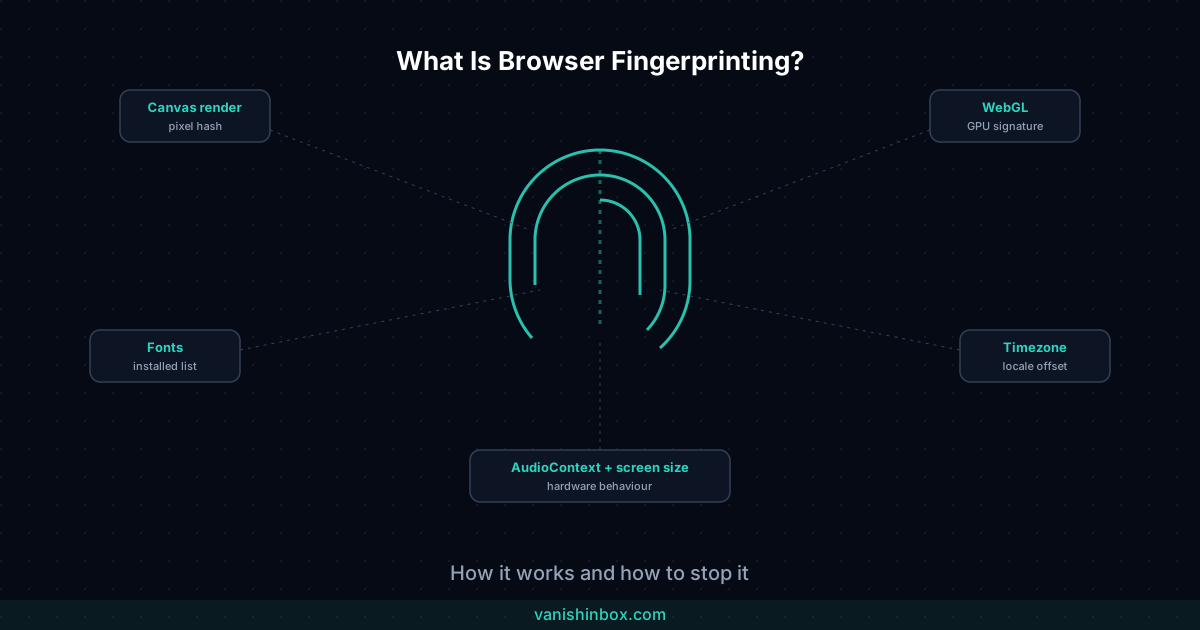
Browser settings — review cookie preferences, clear your browsing history periodically, and consider a browser extension that blocks tracking scripts. Clearing cookies doesn't touch browser fingerprinting, a separate tracking method that identifies your device without storing anything on it — see what is browser fingerprinting? for what it is and what actually reduces it.
Account activity status — many platforms show when you were last active. If you'd prefer not to broadcast this, it can usually be disabled in privacy settings.
Limiting Where Your Data Goes in the First Place
The most effective privacy protection is preventing your data from entering systems you don't control — rather than trying to clean it up afterwards.
Be selective about what you share. Your National Insurance or Social Security number is for tax and benefits purposes. Don't hand it over to a website unless there's a clear, legitimate legal reason. If a service asks for more information than it obviously needs to function, that's a red flag.
Be aware of email tracking. Even emails you chose to receive — newsletters, marketing from services you signed up for — contain tracking pixels that log when you open them, what device you're using, and your approximate location. This is standard industry practice. For the full breakdown of how it works and how to block it, see how companies track you through your email.
Use a disposable email for sign-ups you're unsure about. Every time you use your real email to register with a service, that address enters their database. If that database is breached or sold, your address — and potentially other data linked to it — ends up in the hands of marketers and scammers. VanishInbox generates a working temporary inbox instantly, no account needed. Use it for any sign-up where you don't need a long-term relationship with the service. The address expires, and your real email stays out of that company's records entirely. Note that some sites actively block disposable addresses — if you hit that wall, why websites reject temp email explains the detection methods and what to do instead. For the full explanation of how email data gets monetised and ends up funding spam campaigns and phishing attacks, see what actually happens when a website sells your email address.
Disposable email isn't the only way to keep your real address out of a company's database. Email aliases (Apple Hide My Email, Firefox Relay, SimpleLogin) forward mail to your real inbox instead of deleting it, which suits accounts you're keeping rather than one-time sign-ups. See temp email vs email aliases: what's the difference for which one fits a given sign-up.
Read privacy policies — or at least the key sections. They're long, but most have a section on data sharing. Look for whether the company sells or shares your data with third parties, and what your rights are to access, correct, or delete it.
Exercise your right to deletion. Under GDPR in the UK and EU, and under various US state laws, you have the right to request that a company deletes your data. For services you no longer use, submit a deletion request and close the account rather than just abandoning it.
If Your Information Is Compromised
Acting quickly limits the damage significantly. Here's what to do, in order:
Change your password immediately on the affected account, and on any other accounts where you've used the same or a similar password. This is the most urgent step.
Enable 2FA on the compromised account if it wasn't already on.
Contact your bank or card provider if financial information was involved. Ask them to monitor for unusual activity, cancel and reissue cards if card numbers were exposed.
Place a credit freeze with the main credit reference agencies (Equifax, Experian, and TransUnion in both the UK and US). This prevents new credit accounts being opened in your name without your explicit permission. It's free, and you can lift it temporarily if you need to apply for credit.
Report it — in the UK to Action Fraud (actionfraud.police.uk), in the US to the FTC (identitytheft.gov). The FTC's IdentityTheft.gov also generates a personalised recovery plan based on what was compromised.
Monitor your accounts for the following weeks — bank statements, credit reports, and any accounts that might be targeted if your email was exposed.
A Realistic Baseline for Most People
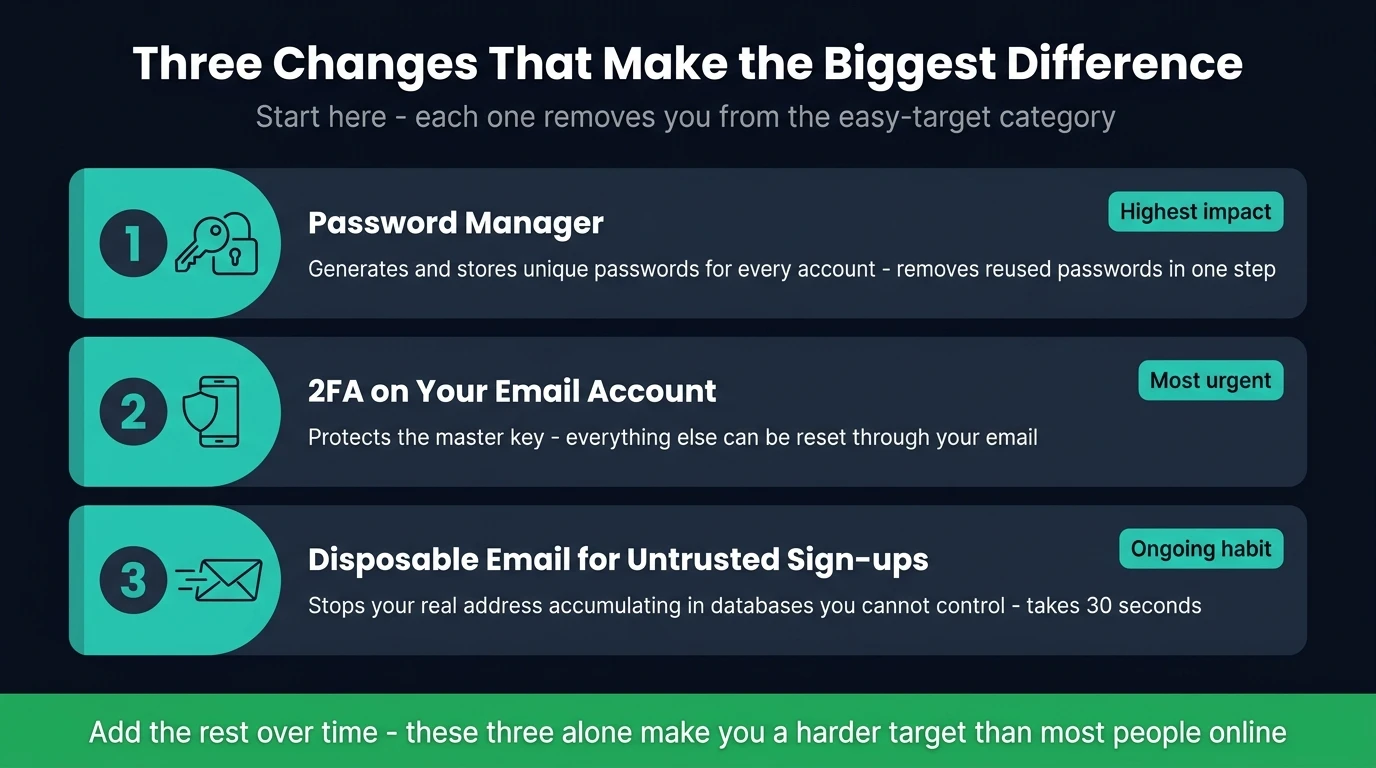
You don't need to do everything in this guide at once. Start with the three changes that make the biggest difference:
- A password manager — removes reused passwords across the board
- 2FA on your email account — protects the master key to everything else
- Disposable email for untrusted sign-ups — stops your real address accumulating in databases you can't control
Add the rest over time. Each layer you add makes you meaningfully harder to target than the majority of people online — which is usually enough to push attackers to easier targets.
Frequently Asked Questions
What's the most important single step?
Strong, unique passwords combined with 2FA on your email account. Your email is used to reset almost every other account you have — if someone gets into your email, they can get into everything else. Protect it first.
How often should I review my privacy settings?
Every six months as a routine, and any time a platform announces changes to its privacy policy or you hear about a data breach involving a service you use. Default settings change after updates and often reset in ways that are less private.
Can I remove my information from the internet once it's out there?
Partially. You can submit deletion requests to services under your legal rights, opt out of data broker lists (services like DeleteMe can help automate this), and request removal from Google Search for certain types of personal information. But you can't guarantee full removal — particularly from archived or scraped copies. The focus should be on limiting what goes in, not just trying to clean up what's already out.
Is a VPN enough to protect my privacy?
A VPN protects your network traffic — it hides your browsing from your ISP and anyone on the same network. It doesn't protect your email, your accounts, or your identity from phishing or data breaches. It's one layer of protection, not a complete solution.
What do I do if I think I'm already a victim of identity theft?
Start at IdentityTheft.gov (US) or Action Fraud (UK). Both provide personalised step-by-step recovery plans. Contact your bank, freeze your credit, and file a police report if any money has moved. The sooner you act, the more of the damage can be contained or reversed.