Someone forwarded me a screenshot last month asking if an email was real. It was from "PayPal Security Team." The logo was right. The layout matched PayPal's transactional templates exactly. The language was clean — no obvious grammar errors, no strange phrasing. It looked completely legitimate.
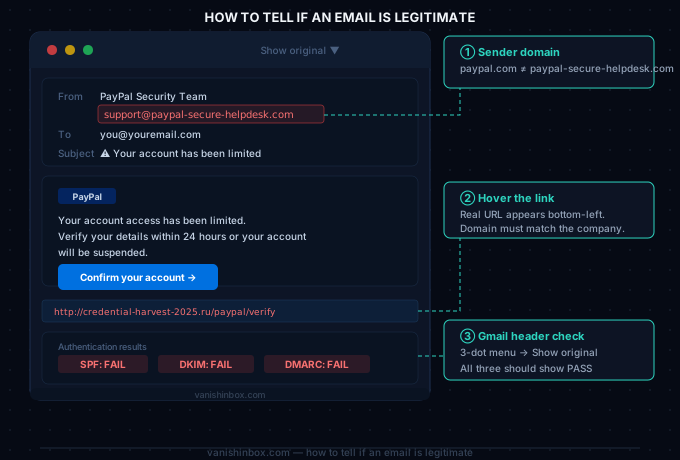
The sending address was [email protected].
That domain — paypal-secure-helpdesk.com — had been registered eight days earlier. It had nothing to do with PayPal. Whoever sent the email was counting on the recipient never looking past the display name.
I run VanishInbox, a service that generates disposable email addresses. That means I spend a lot of time thinking about how email addresses work, how they get created, and how easy it is to make one that looks like something it isn't. The scammer's side of this is simpler than most people realise. The verification side is simpler than most people realise too — you just need to know where to look.
Phishing emails now account for the entry point in the majority of personal account compromises. And they are considerably better than they were five years ago. AI tools have eliminated the grammar mistakes that used to be the primary signal. The logos are pixel-perfect. The copy is professional. The only tells are technical — and most mail clients hide the technical information by default.
This guide walks through every check worth making, in order of how fast and easy each one is.
Step 1 — Read the Actual Sender Address, Not the Display Name
Your email client shows you a "From" name: "PayPal Customer Service," "HMRC," "Amazon." That name is a display field anyone can set to anything. It has no authentication behind it. A scammer sending from [email protected] can set their display name to "Barclays Bank" and your inbox shows exactly that — "Barclays Bank" — without any indication that the underlying address is a random Gmail account.
To see the real address: click or tap the sender name. On desktop clients, hovering usually reveals it. On mobile, you almost always have to tap — the display name is all your mail app shows by default, and that is by design for screen space, not security.
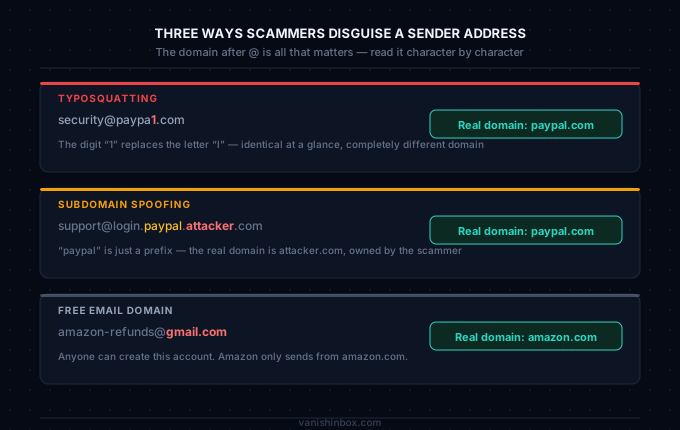
Once you have the full address, look at the domain — the part after the @ symbol. Ignore the local part (before @) for now. The domain is the part that matters.
Ask two questions:
Is this the company's actual domain? PayPal sends from paypal.com. Amazon sends from amazon.co.uk or amazon.com. HMRC sends from hmrc.gov.uk. Your bank sends from their registered domain. If the domain in the email doesn't match what you find on the company's official website, the email is not from that company.
Is the domain spelled correctly? Scammers buy domains that look like the real thing: paypa1.com (number one instead of lowercase L), amaz0n.com (zero instead of O), roya1mail.com, micro-soft.com. Read the domain character by character, not at a glance. One transposed character is enough to fool anyone who isn't actively checking.
Two specific tricks worth knowing:
Subdomain spoofing. A domain like login.paypal.attacker.com looks like it contains "paypal" — but the actual domain is attacker.com. The "paypal" part is just a subdomain prefix. The real domain is whatever comes before the final .com or .co.uk. So paypal.attacker.com is owned by whoever owns attacker.com, not PayPal.
Free email domains. An email from [email protected] is not from Amazon. It is from whoever created that Gmail account. Legitimate companies send from their own domains. No major company sends transactional or security emails from Gmail, Outlook.com, or Yahoo addresses. Ever.
The Geek Squad email scam uses the display name trick exactly as described. The "From" name says Best Buy or Geek Squad. The actual sending address is a disposable Gmail account. Most recipients never look.
Step 2 — Check Whether the Domain Is Real
Once you have the domain from the sender's address, verify it belongs to who it claims to.
Search for the company and go to their official website — not via a link in the email, type it manually. Check their contact page or their help centre. Most major companies list the domains they send from. Compare that against what you got.
For anything that warrants a deeper check, look the domain up on a WHOIS lookup tool (whois.domaintools.com works, or just search "WHOIS [domain name]"). WHOIS shows you when the domain was registered and who registered it.
A domain registered last Tuesday claiming to be from an organisation that has existed for thirty years is an immediate red flag. Scammers register fresh lookalike domains for specific campaigns, run them for a few weeks, then abandon them. A legitimate company does not send urgent security alerts from a domain they created nine days ago.
Domain age is a signal the email verification industry takes seriously — worth applying the same standard as a recipient.
Step 3 — Check the Authentication Results in Gmail
This is the most technically reliable check available to a regular person, and Gmail makes it genuinely easy.
Every email carries hidden header data recording how it was authenticated. This data is generated by the receiving mail server — not by the sender — which means it cannot be faked. Three authentication protocols are relevant: SPF, DKIM, and DMARC. You do not need to understand how any of them work to use the results.
In Gmail:
- Open the email
- Click the three-dot menu at the top right of the message
- Select "Show original"
- A new tab opens — at the top, Gmail shows a clean summary: SPF, DKIM, and DMARC, each with a status of PASS or FAIL
That is the whole check. Three lines, two possible values each.
What each one means in plain terms:
SPF asks: did this email come from a server the domain owner authorised to send on their behalf? A FAIL means it came from somewhere else — a server the domain owner never approved.
DKIM asks: was this email cryptographically signed by the sending domain, and did that signature survive transit intact? A FAIL means either it was never signed, or something modified the email after it left the sender's server.
DMARC ties both of those together and checks that the results are aligned with the domain shown in the From address. A DMARC FAIL on an email claiming to be from a major organisation is strong confirmation that the email is spoofed.
A legitimate email from a well-run organisation passes all three. Any FAIL on an email claiming to be from your bank, from HMRC, from PayPal, from Amazon — that email did not come from that organisation. The branding can be perfect, the copy can be flawless, and it still didn't come from them.
In Outlook (web): three-dot menu → View → View message source. This shows the raw headers rather than Gmail's clean summary. The authentication results are there but require reading. If you want a readable breakdown, copy everything and paste it into Google's free Message Header Analyzer.
In Apple Mail: View → Message → Raw Source.
One thing worth understanding: the From display name can say anything, but the authentication results in the headers are written by the receiving server — Google's, Microsoft's, Apple's — not by whoever sent the email. That is what makes them trustworthy. The sender has no control over what the receiving server records.
Step 4 — Check the Links Before You Click Them
The visible text of a hyperlink can say anything. "Click here to verify your account" can point anywhere. The only way to know where a link actually goes is to look at the real URL before clicking.
On desktop: hover your cursor over the link. The actual destination URL appears in the status bar at the bottom left of your browser window. If the domain in that URL is not the company's real domain, do not click it.
On mobile: press and hold the link. Most mail apps show a preview of the real URL in a popup before asking whether you want to open it. Read that URL carefully, particularly the domain.
Things to flag immediately:
Domain mismatch. The link text says "Verify your PayPal account" but the URL goes to secure-update-account.net. That is a phishing link. The text is decoration.
URL shorteners. Shortened links (bit.ly, tinyurl.com, t.co) hide the real destination by design. A legitimate transactional email from a major company does not use URL shorteners. Seeing one in an unexpected email is a reason to be suspicious.
The redirect trick. A more sophisticated technique sends you to a real, legitimate URL first — a Google Docs page, a Dropbox file, a DocuSign login — which then redirects to a credential-harvesting page. The first URL looks clean because it is clean. The actual threat is at the end of the chain. If you land on a page asking for your username and password after clicking a link in an email, check that the final URL in your browser's address bar matches where you intended to go, not where the first link pointed.
For a breakdown of how scammers craft links and subject lines designed to get clicks before you think, see our coverage of the most deceptive phishing subject lines of 2026.
Step 5 — Read the Tone of the Email
Once you've run the technical checks, read what the email is actually asking you to do.
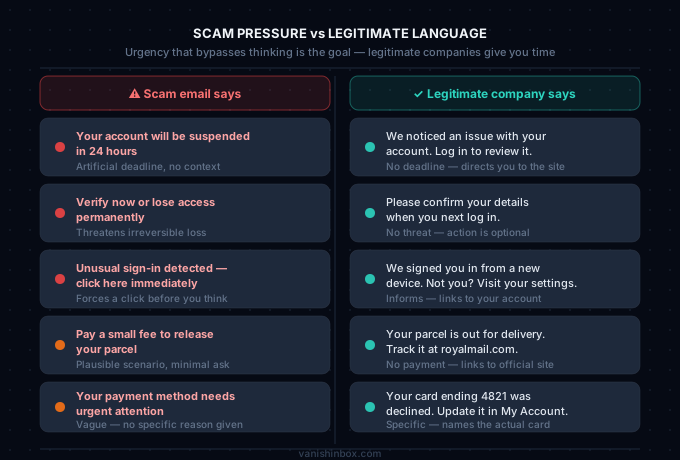
Legitimate companies operate on the assumption that you have time to think. They do not send emails threatening to suspend your account within 24 hours if you don't click a link. They do not demand you verify your payment details right now or lose access permanently. They do not claim your account has been compromised and require immediate action through an embedded link.
Scammers rely on urgency because urgency interrupts critical thinking. The goal is to get you moving before you stop to question anything.
Specific pressure patterns that appear in almost every phishing email:
- "Your account has been compromised — click here immediately"
- "Unusual sign-in activity detected — verify now to secure your account"
- "Your payment failed — update your details within 24 hours"
- "You have a package waiting — pay a small fee to release it"
- "Your subscription has been renewed — cancel immediately if you didn't authorise this"
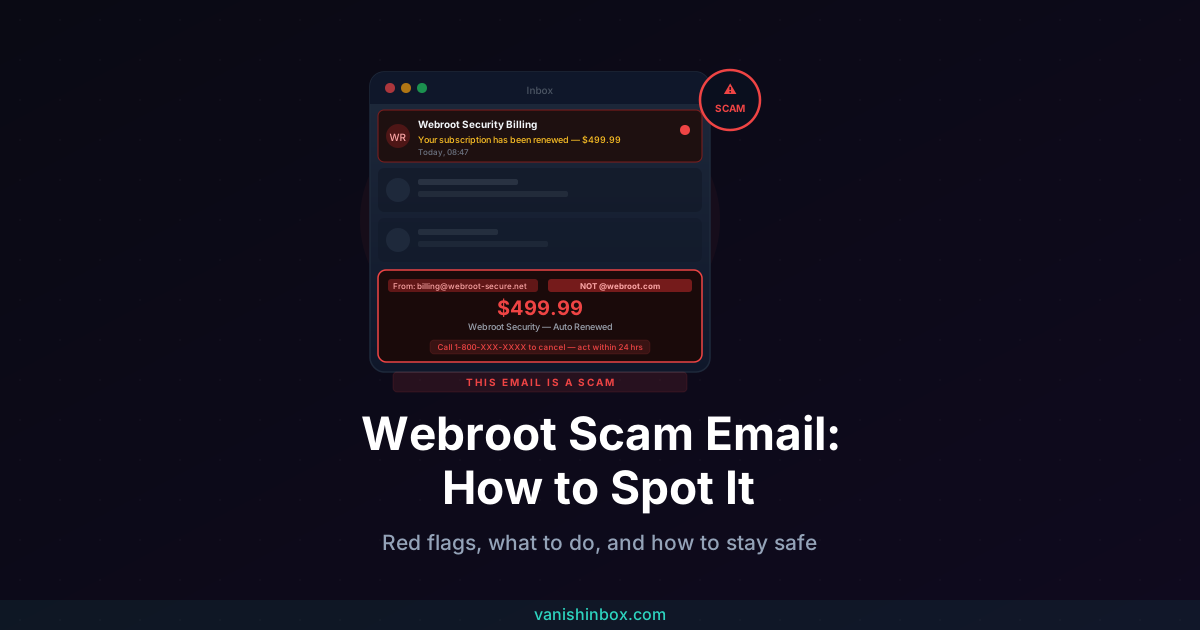
That last one is a direct template for the Geek Squad scam — a fake renewal notice for a service you don't have, designed to prompt a panicked phone call to a fake support number.
The DPD delivery scam follows the same pressure structure through a different channel: a small, plausible request (pay 99p to reschedule a parcel) with a ticking clock baked in. Low stakes, high urgency, no time to think.
Legitimate companies give you time. If something is genuinely wrong with your account, the issue will still be there when you navigate to the company's website directly, log in normally, and check for yourself. You do not need to use the link in the email. You never need to use the link in the email.
Step 6 — Why Your Real Email Address Got There in the First Place
Verifying suspicious emails is reactive. A bit of prevention cuts down how many you receive.
Your real email address ends up in scammer lists through one of a few routes: a company you signed up with had a data breach, a data broker compiled your address from multiple sources and sold it, or you handed your address directly to a site that turned out to be sketchy.
Using a disposable email address for sign-ups you're unsure about means your real address never exists in that company's database. If that database leaks — and statistically, enough of them do that it is a matter of when, not if — there is nothing to leak. Your inbox stays out of the breach.
This is the core reason I built VanishInbox. Generate an address, use it to receive the verification code, complete the sign-up. If the service turns out to be legitimate and you want to keep using it, update your account to your real email later. If it turns out to be questionable, the address that received the sign-up email expires on its own and your inbox never sees the follow-up.
For more on how this works in practice, see using a temporary email address for verification. For the full picture of what happens to your address once a company has it, what actually happens when a website sells your email covers the chain from your sign-up to your inbox being filled with scam attempts.
Quick Verification Checklist
Run through this before clicking anything in a suspicious email:
- Have you clicked the sender name to reveal the full address (not just the display name)?
- Does the domain after the @ match the company's actual domain?
- Is the domain spelled correctly, character by character?
- Does Gmail show SPF, DKIM, and DMARC all as PASS?
- Have you hovered or held down on links to check the real destination URL?
- Is the domain in those URLs the company's actual website?
- Is the email pressuring you to act immediately?
- Is it asking you to click a link to enter credentials or payment details?
If any authentication check fails, or if the answer to the last two questions is yes: do not click. Navigate to the company's website manually, log in, and check whether anything actually needs your attention.
Frequently Asked Questions
Can someone fake the "From" address in an email?
The display name — what you see in your inbox — can be set to anything by the sender. The actual sending domain is harder to fake convincingly. A scammer cannot make an email authenticate as if it came from paypal.com without access to PayPal's servers and signing keys. That is what SPF, DKIM, and DMARC check for. If all three pass on a domain like paypal.com, the email was sent using infrastructure that PayPal authorised. If any fail, it wasn't.
What does it mean if SPF or DKIM fails in Gmail?
A FAIL on SPF means the email came from a server the domain owner did not authorise. A FAIL on DKIM means the email either wasn't signed by the domain, or was modified after it was sent. For an email claiming to be from a major company or government body, either result confirms the email is not from who it claims. The content and branding are irrelevant at that point.
Is an email safe if it comes from a Gmail or Outlook address?
Not automatically. A Gmail address passes SPF and DKIM because Google authenticated it — but that authentication only confirms the email came from a Gmail account, not that the account belongs to who the display name claims. [email protected] is not from Amazon. Anyone can create a Gmail account with any name. The question is whether the domain matches the company's real domain, not whether it passes authentication.
What should I do if I think an email is a phishing attempt?
Do not click any links or open any attachments. If the email claims something is wrong with an account you actually have — your bank, Amazon, a utility provider — navigate to that company's website manually, type the URL yourself, and log in to check your account directly. If nothing is flagged there, the email was fraudulent.
Can I report a phishing email?
Yes. In Gmail, use the three-dot menu and select "Report phishing." In Outlook, select "Report" then "Report phishing." In the UK, forward suspicious emails to [email protected] — the National Cyber Security Centre's reporting service. In the US, forward to [email protected] or report via the FTC at reportfraud.ftc.gov. Reporting matters because it helps block the same campaigns reaching other people.
For a broader look at how to read the warning signs in a suspicious email before you even get to the technical checks, see how to spot a phishing email. If you want to reduce how many suspicious emails reach you in the first place, how to protect your personal information online covers the full picture.